What is Window Expander?
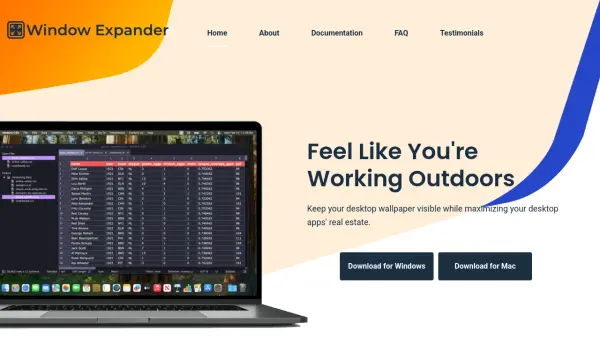
Window Expander is a desktop utility application designed to enhance productivity and user experience by automatically resizing windows to occupy most of the screen area while leaving customizable margins visible. This allows users to maintain visibility of their desktop wallpaper, creating a more pleasant working environment compared to fully maximized windows. The tool operates from the system tray and provides settings for adjusting margin sizes and minimum window dimensions.
Developed by Evan, the creator addresses common workflow challenges such as frequent window resizing when switching between monitors or virtual machines. By automating this process, Window Expander saves time and reduces manual effort. The application is completely free and supports both Windows and macOS platforms, with a Linux version in development. It integrates seamlessly into existing workflows without requiring complex configuration.
Features
- Automatic Window Resizing: Automatically resizes all non-minimized, non-maximized windows that meet minimum size criteria with one click
- Customizable Margins: Allows users to set pixel-based margins on all sides of windows to keep desktop wallpaper visible
- Cross-Platform Support: Available for both Windows and macOS operating systems, with Linux version in development
- System Tray Integration: Runs discreetly in the system tray with easy access to settings and resize functions
- Minimum Size Configuration: Users can define minimum window size thresholds to control which windows get resized
Use Cases
- Automatically arranging multiple application windows across multiple monitors
- Maintaining desktop wallpaper visibility while maximizing workspace efficiency
- Reducing time spent manually resizing windows when switching between display setups
- Improving workflow productivity in virtual machine environments with multiple windows
- Creating a more visually pleasing desktop environment with consistent window layouts
FAQs
-
What are the system requirements for Window Expander?
Window Expander requires Windows or macOS operating systems. Specific version requirements aren't specified, but it should work on most modern versions. The Linux version is currently in development. -
Can I customize which windows get resized?
Yes, through the Minimum Size setting which determines the minimum size a window must be relative to its screen to be eligible for automatic resizing. Only windows meeting this criteria that aren't minimized or maximized will be resized. -
Does Window Expander work with all types of applications?
It should work with most standard desktop applications that support window resizing. The tool resizes windows that meet the minimum size criteria and aren't currently minimized or maximized. -
How do I access Window Expander settings?
Settings are accessed by selecting the Settings option from the Window Expander icon in your system's utility tray. This opens a configuration window where you can adjust margins and minimum size settings. -
Is there any performance difference between Windows and Mac versions?
Yes, the Mac version includes a brief delay between each window resize for technical reasons, making it take a few seconds to complete, while the Windows version resizes almost instantaneously.