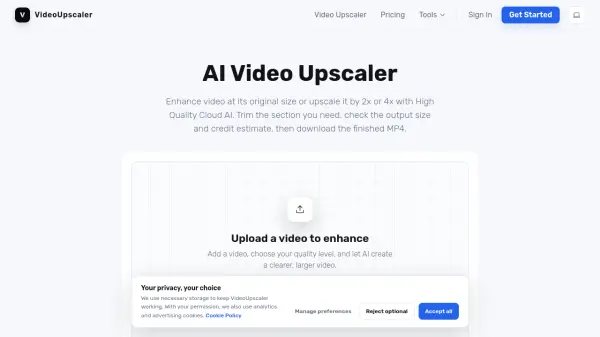
What is VideoUpscaler?
Designed for improving the visual quality of existing footage, this cloud-based application enables users to enhance videos at their original size or upscale them by up to four times. The platform processes media efficiently in the cloud, utilizing advanced algorithms to output clearer and larger video frames. Users benefit from a built-in timeline that allows them to intuitively trim clips before enhancement, ensuring that only the specific required sections are processed.
The workspace automatically adjusts requests that exceed size limits, supporting enhanced MP4 outputs up to Full HD resolution. It seamlessly handles common input formats such as MP4, MOV, WebM, and MKV directly within a supported browser. For privacy and data security, all uploaded files and processed video results are automatically deleted from the servers within four hours, providing a secure environment for media processing.
Features
- AI Video Enhancement: Improve the visual appearance and clarity of existing footage at its original 1x size.
- Video Upscaling: Enlarge video dimensions by 2x or 4x to create a larger frame, subject to Full HD output limits.
- Built-in Trimming: Select specific start and end points on a timeline to enhance only the necessary sections of a recording.
- Cloud Processing: Utilize high-quality cloud computing to process video enhancements without overloading local hardware.
- Browser Previews: Play both original and enhanced sides in sync to compare detail and motion throughout the footage.
- MP4 Export: Save all finished, enhanced videos as separate, universally compatible MP4 files.
Use Cases
- Revisiting and restoring older, low-resolution recordings to improve their visual clarity.
- Preparing short, high-quality video clips for sharing on social media platforms.
- Enhancing and upscaling specific excerpts of a video before importing them into a final editing workflow.
How It Works
Add a video
Select a video or drop it into the workspace. Common inputs include MP4, MOV, WebM, and MKV. Wait for the preview to load.
Trim your clip
Set the start and end points on the timeline, then play the selection to ensure you are only processing the required portion.
Choose the scale
Select 1x, 2x, or 4x and check the output dimensions beneath it. The workspace adjusts requests that exceed its Full HD size limit.
Enhance and download
Click Enhance video and keep the page open during preparation and upload. Once processing finishes, review the result and click Download output video to save the MP4.
FAQs
-
Does 4x mean 4K output?
No. The multiplier applies to the source width and height, subject to a Full HD output limit: 1920 × 1080 for landscape video, 1080 × 1920 for portrait, and 1080 × 1080 for square. This workspace does not export 3840 × 2160 video. -
Can AI fix a very blurry video?
Enhancement may improve its appearance, but strong blur and compression can remain visible. AI cannot reliably recover every missing detail, so it is recommended to test a short section before processing more footage. -
Is my original video uploaded and stored permanently?
Your video is uploaded for cloud enhancement, but it is not stored permanently. All uploaded videos and processed results are removed from the servers within 4 hours. -
Why will my video not process?
Check that the source plays in the browser and the selected range fits the displayed duration limit. If the file cannot be read, try a compatible encoding such as H.264 MP4. For interrupted uploads, check your connection.