What is spacedesk?
spacedesk is a versatile display extension software solution designed to expand your Windows desktop workspace by utilizing secondary devices such as smartphones, tablets, laptops, and other computers as additional monitors. It supports connections via USB, WiFi, and LAN, allowing for seamless screen casting, desktop duplication, and remote access. The software transforms these devices into extension displays, virtual monitors, or input consoles, enhancing productivity and flexibility for professionals, educators, and creatives.
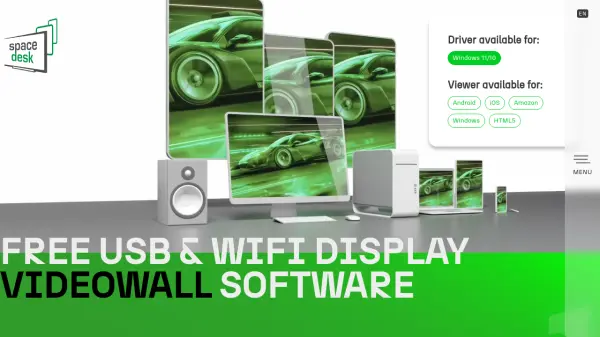
With features like audio streaming, touch and stylus-pen input, and KVM-switch functionality, spacedesk facilitates a wide range of applications from digital signage and video walls to portable multi-monitor setups. It is compatible with Windows 11/10 as the primary machine and offers viewer applications for Android, iOS, Amazon, Windows, and HTML5 platforms, making it an ideal tool for on-the-go workspace expansion and remote control.
Features
- Desktop Extension Display: Turns mobile devices, laptops, and desktops into additional extension displays for Windows machines
- Desktop Duplication Display: Casts screen content from primary Windows machine to other devices over WiFi, USB, or network cable
- Creative Video Wall Display: Used for digital signage to display advertisements, dashboards, menus, or scenery
- Touch, Stylus-Pen, Keyboard and Mouse Input: Functions as a software KVM switch for controlling primary Windows machine from connected devices
- Audio Playback Speaker Device: Redirects audio output from primary Windows machine to connected devices over network or USB
Use Cases
- Extending workspace with additional monitors for multitasking
- Screen mirroring for presentations or educational purposes
- Creating digital signage or video walls for advertisements or displays
- Remote access and control of Windows machines from mobile devices
- Using tablets as input devices for drawing or creative work
FAQs
-
What operating systems are supported by spacedesk?
spacedesk supports Windows 11/10 as the primary machine, with viewer applications available for Android, iOS, Amazon, Windows, and HTML5 platforms. -
How can I connect devices using spacedesk?
Devices can be connected via USB, WiFi, or LAN connections to extend or duplicate the Windows desktop workspace. -
Is spacedesk free to use?
Yes, spacedesk is a free software tool for display extension and remote access functionalities. -
Can spacedesk be used for audio streaming?
Yes, spacedesk includes an audio playback feature that redirects sound from the primary Windows machine to connected devices. -
What is the KVM-switch functionality in spacedesk?
spacedesk acts as a software KVM switch, allowing control of a primary Windows machine using keyboard, video, and mouse inputs from connected mobile devices, laptops, or desktops over network or USB.