What is Pictomate Icons?
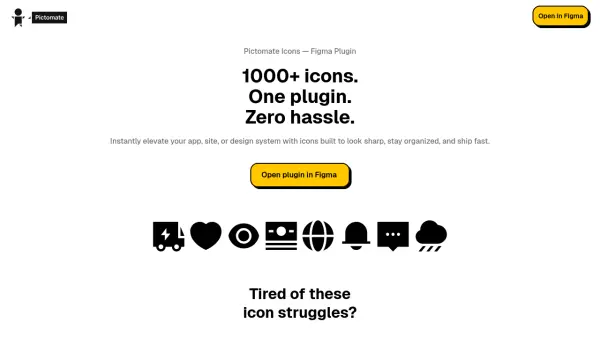
Pictomate Icons is a comprehensive Figma plugin that provides designers with instant access to over 1,000 professionally crafted icons. This tool eliminates the common frustrations of icon management by offering a clean, consistent library built directly into Figma's workflow. With features like smart search, intuitive categorization, and three distinct icon weights (Light, Regular, and Fill), users can quickly find and implement pixel-perfect icons tailored for modern applications, websites, and design systems.
The plugin ensures production-ready assets with optimized vectors, consistent sizing, and unified naming conventions, facilitating smooth development handoff. All icons are licensed for both personal and commercial use without attribution requirements. Pictomate Icons streamlines the design process by removing the need for manual downloads, file organization, or cleanup, allowing designers to focus on creating polished, professional interfaces efficiently.
Features
- Smart Search: Allows users to find icons quickly by typing keywords or browsing intuitive categories
- Three Icon Weights: Provides Light, Regular, and Fill variants to match different design tones and screen densities
- Production-Ready Assets: Features optimized vectors, consistent sizing, and unified naming for seamless development handoff
- Direct Figma Integration: Works as a plugin within Figma, enabling instant access without downloads or installations
- Commercial License: Permits use in personal and commercial projects without attribution requirements
Use Cases
- Enhancing UI/UX designs for mobile apps and websites
- Building and maintaining consistent design systems
- Accelerating design workflows with quick icon insertion
- Improving development handoff with clean, export-ready assets
- Creating professional presentations and marketing materials
FAQs
-
How do I install the Pictomate plugin?
You can install Pictomate by searching for 'Pictomate Icons' in the Figma Community and clicking Run, or from inside any Figma file by going to Resources → Plugins → Search 'Pictomate' → Run. -
What icon styles or weights are available?
Pictomate includes three cohesive icon weights: Light, Regular, and Fill, each designed for different screen densities and design moods. -
How can I find the icon I need quickly?
Use the smart search bar to type keywords or browse intuitive categories like UI, arrows, finance, and humans for fast discovery. -
Can I request a missing icon or suggest a feature?
Yes, send suggestions to [email protected]; requests are reviewed and added to the roadmap based on demand. -
Can I use Pictomate icons outside of Figma?
Yes, icons can be exported as SVG, PDF, PNG, or JPG files for use in other tools like websites, apps, or presentations.