You upload a contract PDF and the assistant says the document is empty. A spreadsheet attachment returns scrambled columns. A scanned invoice produces one block of noise instead of line items. These AI attachment parse failure cases block coding assistants, writing tools, and support bots that rely on file context. The model is often fine; the extraction layer never delivered usable text.
This guide covers symptoms, OCR preprocessing, splitting large or encrypted PDFs, and extracting tables to CSV before upload. Developers wiring AI coding tools and AI writing assistant workflows into document pipelines will hit the same file-type edge cases across vendors.
Symptoms: Empty Text, Garbled Tables
Parse failures show up as zero extracted characters, merged cells rendered as gibberish, or correct prose with destroyed table structure. Distinguish symptom from root cause before re-uploading the same file ten times. Log extraction output length, page count processed, and any vendor error code before the prompt reaches the model.
| Symptom | Common file cause | First fix to try |
|---|---|---|
| Empty text, file "uploaded" | Scanned PDF, image-only pages | OCR preprocessing or native text PDF export |
| Garbled tables | Multi-column layout, merged cells | Extract table to CSV; upload CSV instead |
| Partial content only | Page limit, size cap, timeout | Split PDF by section; summarize in chunks |
| Encoding artifacts | Legacy PDF fonts, custom encodings | Print to PDF or re-save from source app |
| Immediate upload error | Password, DRM, unsupported MIME | Decrypt locally; convert format |
For ai pdf parse error tickets, ask whether native PDF text selection works in Acrobat or Preview. If user cannot select text, the AI parser also cannot read text without OCR. If selection works but AI output is empty, suspect vendor page limits, async job not completed, or wrong file ID passed to chat completion request.
Garbled tables often mean the extractor linearized a two-dimensional grid into one column of tokens. The model then hallucinates structure.
Do not prompt-engineer around broken input; fix extraction. Compare md5 of extracted plain text against local pdftotext or
Apache Tika output to see if vendor or your middleware dropped content.
OCR Preprocessing for Scans
Run OCR locally or in a dedicated service before sending scans to the AI attachment API when empty text is returned. OCR quality depends on resolution, skew, contrast, and language pack. A 72 DPI phone photo of a whiteboard will fail where a 300 DPI grayscale scan succeeds.
- Deskew and crop: Remove margins and rotate pages to horizontal text baseline.
- Increase contrast: Binarize faint scans; remove background noise.
- Resolution: Target 300 DPI equivalent for small fonts; upscale cautiously.
- Language: Set OCR language to document locale; mixed EN/JP needs multi-language mode.
- Output format: Produce searchable PDF or plain text sidecar file for upload.
Cloud OCR (Google Document AI, AWS Textract, Azure Document Intelligence) returns structured blocks you can inject as context instead of relying on vendor built-in parsers for hard scans. Trade cost for reliability on high-value workflows in coding and compliance review pipelines.
When addressing fix scanned document ai failures, store OCR confidence scores per page. Pages below threshold route to human review instead of automatic summarization. Low confidence plus confident model summary is a liability risk in legal and medical use cases.
Splitting Large or Encrypted PDFs
Files over vendor size or page limits must be split; password-protected PDFs must be decrypted before upload. Most AI platforms reject encrypted PDFs at upload or return empty extraction without a clear error. Large manuals hit token caps even when upload succeeds, producing silent truncation.
Splitting strategy: break by chapter headings or every N pages (50 to 100 depending on density), name chunks clearly
(handbook-section-3-pages-41-80.pdf), and process sequentially with rolling summary if whole-document context is required.
Merge summaries in a final pass rather than one prompt with 400 pages attached.
For encryption: decrypt with authorized credentials in secure worker, never log password, re-upload unencrypted copy to private storage with short TTL. If policy forbids removing password, use on-prem extraction that passes text only to API, not raw file. Document chain of custody for regulated data.
| Constraint | Typical vendor limit | Mitigation |
|---|---|---|
| File size | 32 to 512 MB per file | Compress images; split PDF |
| Page count | 100 to 1000 pages | Chunk with map-reduce summary |
| Token context | Model window minus reply budget | Retrieve relevant sections only |
Extract Tables to CSV First
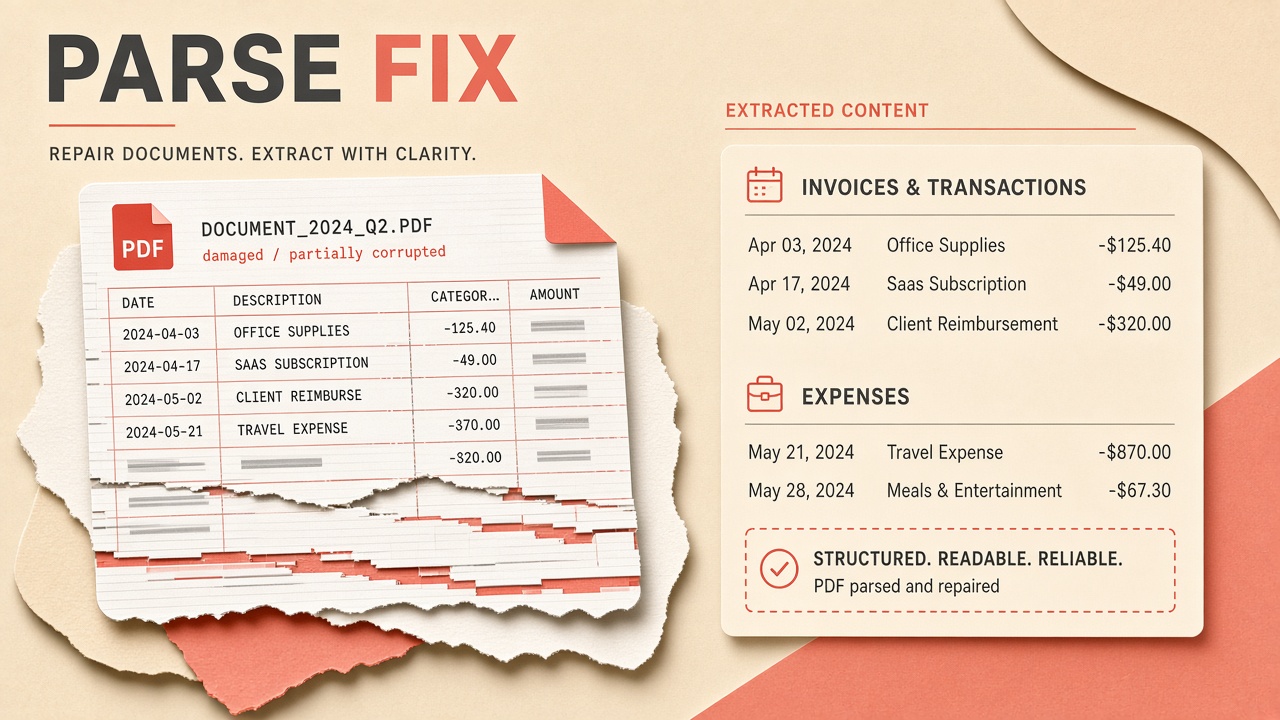
For spreadsheet-like PDFs, extract tables to CSV or XLSX before AI analysis when column alignment matters. Tabular financial data, API field lists, and test matrices lose fidelity in plain text linearization. CSV gives the model explicit row and column boundaries without vision token cost.
Tools: Tabula, Camelot, pdfplumber (Python), or spreadsheet "Save As CSV" from source Excel. Validate row count and header row manually on one sample. Upload CSV as attachment or paste into code block in prompt for small datasets. For table extraction ai failure cases, include header row in prompt instructions: "First row is column names; do not invent columns."
Hybrid workflow for
writing assistants
reviewing reports: prose sections stay in PDF; each table exported to CSV referenced by filename in system message
(See revenue_table.csv for Q3 figures). Reduces conflation of narrative and numeric columns in model reasoning.
When tables span pages with repeated headers, configure extractor to merge continuation rows and dedupe header lines. Otherwise CSV contains duplicate header rows mid-file and totals parse incorrectly.
File-Type Remediation Matrix
Use this matrix as first-line triage before escalating to vendor support. Log which remediation step fixed the issue to build internal playbooks per department (legal scans vs engineering specs vs marketing decks).
| Format | If parse fails | Remediation |
|---|---|---|
| DOCX | Complex fields | Save as PDF or export plain text |
| PPTX | Speaker notes missing | Export notes to TXT; attach slides as images per slide if needed |
| XLSX | Multiple sheets ignored | Export each sheet CSV; name sheets in prompt |
| PNG/JPG | Text in image | OCR or multimodal vision with high-res upload |
Monitoring and Prevention
Track metrics: attachment upload success rate, extracted character count distribution, zero-byte extraction rate, mean pages processed. Alert when zero-byte rate spikes after vendor SDK upgrade. Pre-flight validate files in browser or API gateway: reject encrypted PDF, warn on scan-only PDF via heuristics (no font objects, large image streams).
User education reduces tickets: document supported formats, max size, and scan tips in product help. Template "Prepare your document" checklist linked from upload dialog saves support load for teams using AI coding tools on legacy PDF specs.
Async File Processing Gaps
Many AI APIs process uploads asynchronously; chat requests sent before processing completes return empty attachment context.
The UI shows a filename chip while backend status is still processing. Users ask questions immediately; model answers without
document evidence and support labels it a parse failure. Poll file status endpoint or subscribe to webhook before injecting file into prompt.
Implement client-side guard: disable send button until status is ready or show explicit warning when user overrides. Log time
delta between upload complete and first chat message. Sub-second messages on hundred-page PDFs are a signal context was never loaded.
Vendor Parser Differences
OpenAI file search, Anthropic document blocks, and Google file API use different extraction pipelines for the same PDF. A file that parses in one vendor may fail in another. Do not assume cross-vendor parity when migrating writing assistant integrations. Re-validate golden document set on every provider switch. Keep vendor-specific remediation notes in runbook appendix.
Frequently Asked Questions
Can AI tools read password-protected PDFs?
Generally no. Decrypt locally with user-supplied password in secure client or worker, then upload decrypted copy to private storage with access controls. Never send password to third-party chat logs. For highly sensitive docs, extract text on-prem and send text-only context to API with retention disabled if vendor supports zero-data mode.
Does handwriting work in attachments?
Handwriting recognition quality varies widely. Cursive and low-contrast ink fail OCR often. Recommend print scans, high DPI, and dedicated handwriting OCR models for forms. Set user expectations: model may paraphrase illegible words; do not use for legal verbatim without human verification.
Same PDF works in Tool A but not Tool B. Why?
Different page limits, OCR inclusion, and table parsers. Compare extracted text length locally. Tool B may require async "file processing" job complete before chat; premature message yields empty context. Check file status endpoint before first user question.
Should I use vision mode instead of text extraction?
Vision helps complex layouts and diagrams but costs more tokens and may still miss fine print. Prefer text extraction for long prose; use vision for single-page forms or mixed diagram pages. Hybrid: extract text plus attach key pages as images for figures.
The Bottom Line
Attachment parse failures are preprocessing problems more often than model problems. Classify empty versus garbled versus partial, OCR scans, split or decrypt PDFs, and export tables to CSV when structure matters. Instrument extraction length before blaming the LLM. Document pipelines feeding writing assistants and code tools should treat file ingestion as a first-class QA surface, not an afterthought.