
What is Super Vectorizer?
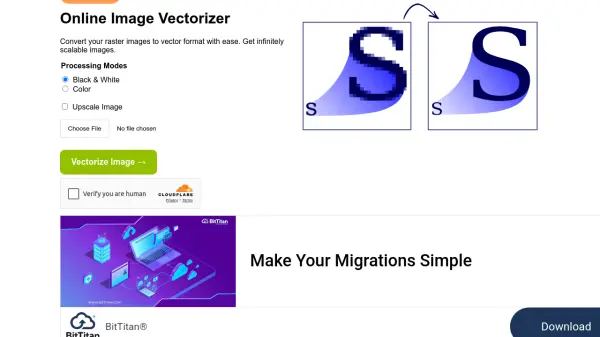
Super Vectorizer offers a suite of tools designed for graphic manipulation, headlined by Super Vectorizer Pro, a professional vector trace application. This core tool enables users to convert raster bitmap images, such as JPEG, BMP, and PNG files, into high-quality, scalable vector graphics like SVG, AI, XDF, and PDF formats. The conversion process utilizes auto-tracing technology, simplifying the workflow for creating vector art from existing images on both Mac and Windows operating systems.
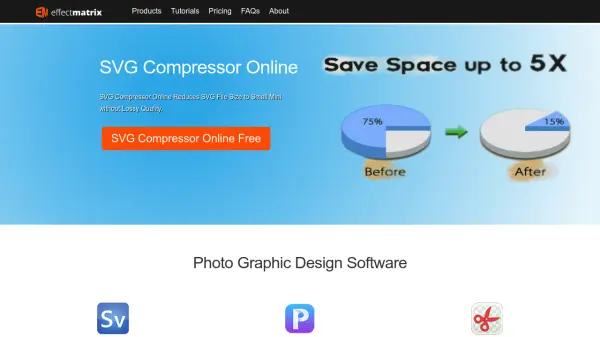
In addition to the primary vectorization software, the platform provides several free online utilities. These include an online vector drawing editor for creating line art, logos, and icons, an SVG compressor to reduce file sizes without quality loss, and a simple online SVG editor for quick color adjustments and data import/export. Other desktop software offerings include PixelStyle Photo Editor for Mac, a comprehensive photo editing and graphic design tool with various filters, and Super PhotoCut for Mac, specializing in quick background removal from images.
Features
- Auto Image Tracing: Automatically converts raster images (PNG, JPG, GIF, BMP) into vector formats.
- Multiple Output Formats: Exports vector graphics as SVG, AI, XDF, and PDF.
- Cross-Platform Availability: Super Vectorizer Pro available for both Mac and Windows.
- Online SVG Tools: Includes free browser-based SVG drawing, compression, and editing utilities.
- Companion Photo Editing Software: Offers PixelStyle Photo Editor for Mac with advanced filters.
- Background Removal Tool: Provides Super PhotoCut for Mac for quick background removal.
Use Cases
- Converting logos from bitmap to vector format for scalability.
- Vectorizing illustrations and line art for high-resolution printing.
- Creating scalable web graphics (icons, elements) from raster images.
- Preparing images for cutting plotters or engraving machines.
- Editing photos and designing graphics on Mac (using PixelStyle).
- Quickly removing backgrounds from product images or portraits (using Super PhotoCut).
- Drawing simple vector shapes and lines online.
- Compressing SVG files for web optimization.
FAQs
-
How do you convert a bitmap image to vector on Mac?
Super Vectorizer Pro allows conversion of bitmap images (like JPEG, BMP, PNG) to scalable vector graphics on Mac through its auto-tracing features. More details can be found in the tutorials section. -
Can I convert PNG images to SVG format?
Yes, Super Vectorizer Pro supports converting PNG images into SVG vector format on both Mac and Windows. -
Are there online tools for SVG editing?
Yes, the website offers free online tools including an SVG Editor for quick color changes, an SVG Compressor, and an Online Vector Drawing tool. -
Is there a tool for removing image backgrounds?
Yes, Super PhotoCut for Mac is available to quickly remove backgrounds from images.