
What is Jabberwocky?
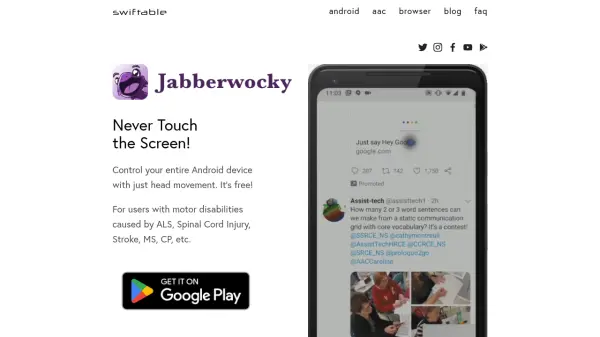
Jabberwocky by Swiftable is an accessibility application designed for Android devices, empowering users with motor disabilities to regain control over their digital lives. It offers complete hands-free operation by utilizing the device's camera to track head movements, translating them into cursor control on the screen. Users can navigate the interface by moving their head – looking up and down moves the cursor vertically, while turning left and right moves it horizontally.
Interaction with on-screen elements, such as tapping buttons or scrolling, is achieved through facial gestures. By default, winking performs a tap, with a sustained wink enabling complex gestures like scrolling or swiping. Alternatively, users can configure opening and closing their mouth to trigger touches. This functionality is particularly beneficial for individuals affected by conditions like ALS, Spinal Cord Injury, Stroke, Multiple Sclerosis, or Cerebral Palsy, providing them with renewed independence in communication, accessing information, and controlling smart home devices linked to their phone.
Features
- Head Movement Cursor Control: Navigate the Android interface using head movements.
- Facial Gesture Interaction: Perform taps, swipes, and scrolls using winks or mouth movements.
- Cursor Toggle: Enable or disable the cursor easily by shaking your head.
- Screen Always On (Default): Prevents the screen from turning off during use for uninterrupted access.
- Compatibility: Designed specifically for the Android operating system.
Use Cases
- Enabling device access for individuals with ALS.
- Providing hands-free control for users with Spinal Cord Injuries.
- Assisting Stroke survivors with mobile device interaction.
- Facilitating smartphone use for people with Multiple Sclerosis or Cerebral Palsy.
- Offering an alternative input method for any user requiring hands-free operation.
FAQs
-
How do I touch the screen using Jabberwocky?
By default, winking performs a touch at the cursor location. A quick wink taps the screen, while holding the wink allows for scroll and swipe gestures. Opening and closing your mouth can also be configured for touch interaction. -
How is the cursor controlled?
The cursor is controlled by head movement. Pointing your nose up/down moves the cursor vertically, and turning your head left/right moves it horizontally. -
How can I enable or disable the cursor?
Shake your head left to right (like saying 'no') to disable the cursor. Shake your head again to re-enable it. -
Will my screen turn off while using Jabberwocky?
By default, the screen will stay on. You can change this behavior in the settings, but it's recommended to enable 'Unlock with Voice Match' if you do, so you can turn the screen back on with your voice. -
Can I still use touch input if I have some mobility?
Yes, Jabberwocky does not interfere with your ability to physically interact with the device's screen.