Agent skill
how-to-send-push-notifications-on-flutter-web-fcm
Learn how to implement Firebase Cloud Messaging (FCM) in your Flutter web app with this guide, covering service worker setup, helper methods, and testing to enable push notifications.
Install this agent skill to your Project
npx add-skill https://github.com/rodydavis/skills/tree/main/skills/push-notifications-flutter-web
Metadata
Additional technical details for this skill
- last modified
- Tue, 03 Feb 2026 20:04:20 GMT
SKILL.md
How To Send Push Notifications on Flutter Web (FCM)
If you are using Firebase then you are probably familiar with Firebase Cloud Messaging. The setup on Flutter web is very different than mobile and other plugins you are probably used to.

Setting Up
Open your web/index.html and look for the following script. If you do not have one you can add it now in the tag.
<script>
if ("serviceWorker" in navigator) {
  window.addEventListener("load", function () {
    navigator.serviceWorker.register("/flutter_service_worker.js");
  });
}
</script>
We need to modify it to support the FCM service worker. The important thing we need to do is comment out the flutter_service_worker.js so that we will not get 404 errors when registering the FCM service worker.
<script>
if ("serviceWorker" in navigator) {
  window.addEventListener("load", function () {
    // navigator.serviceWorker.register("/flutter_service_worker.js");
    navigator.serviceWorker.register("/firebase-messaging-sw.js");
  });
}
</script>
Now create a new file called firebase-messaging-sw.js in the web folder with the following contents:
importScripts("https://www.gstatic.com/firebasejs/7.5.0/firebase-app.js");
importScripts("https://www.gstatic.com/firebasejs/7.5.0/firebase-messaging.js");
firebase.initializeApp({
    apiKey: "API_KEY",
    authDomain: "AUTH_DOMAIN",
    databaseURL: "DATABASE_URL",
    projectId: "PROJECT_ID",
    storageBucket: "STORAGE_BUCKET",
    messagingSenderId: "MESSAGING_SENDER_ID",
    appId: "APP_ID",
    measurementId: "MEASUREMENT_ID"
});
const messaging = firebase.messaging();
messaging.setBackgroundMessageHandler(function (payload) {
    const promiseChain = clients
        .matchAll({
            type: "window",
            includeUncontrolled: true
        })
        .then(windowClients => {
            for (let i = 0; i < windowClients.length; i++) {
                const windowClient = windowClients[i];
                windowClient.postMessage(payload);
            }
        })
        .then(() => {
            return registration.showNotification("New Message");
        });
    return promiseChain;
});
self.addEventListener('notificationclick', function (event) {
    console.log('notification received: ', event)
});
Make sure to replace the config keys with your firebase keys.
Helper Methods
Create a new dart file wherever you like named firebase_messaging.dart with the following:
import 'dart:async';
import 'package:firebase/firebase.dart' as firebase;

class FBMessaging {
  FBMessaging._();
  static FBMessaging _instance = FBMessaging._();
  static FBMessaging get instance => _instance;
  firebase.Messaging _mc;
  String _token;

  final _controller = StreamController<Map<String, dynamic>>.broadcast();
  Stream<Map<String, dynamic>> get stream => _controller.stream;

  void close() {
    _controller?.close();
  }

  Future<void> init() async {
    _mc = firebase.messaging();
    _mc.usePublicVapidKey('FCM_SERVER_KEY');
    _mc.onMessage.listen((event) {
      _controller.add(event?.data);
    });
  }

  Future requestPermission() {
    return _mc.requestPermission();
  }

  Future<String> getToken([bool force = false]) async {
    if (force || _token == null) {
      await requestPermission();
      _token = await _mc.getToken();
    }
    return _token;
  }
}
Create a button in the app that will be used to request permissions. While it is possible to request for permission when the app launches this is usually bad practice as the user is unlikely to accept and there is no trust built yet. You can request permissions with the following:
final _messaging = FBMessaging.instance;
_messaging.requestPermission().then((_) async {
  final _token = await _messaging.getToken();
  print('Token: $_token');
});
You can listen to messages with the following:
final _messaging = FBMessaging.instance;
_messaging.stream.listen((event) {
  print('New Message: ${event}');
});
Testing
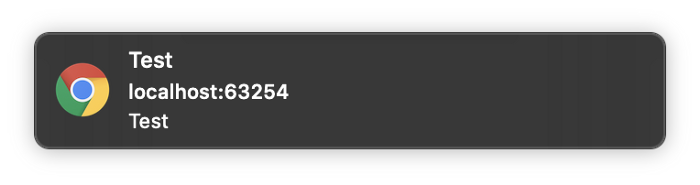
Now when you run your application and request permissions you will get a token back. With this token you can open the firebase console and sent a test message to the token.
Conclusion
Now you can send push notifications to Flutter apps! You still need to use conditional imports to support the mobile side as well but stay tuned for an example with that. Let me know your questions and any feedback you may have.
Recommended Agent Skills
Expand your agent's capabilities with these related and highly-rated skills.
 rodydavis/skills
how-to-do-offline-recommendations-with-sqlite-and-gemini
Learn how to enhance your CMS like PocketBase with AI-powered content recommendations using text embeddings, SQLite, and k-nearest neighbor search for efficient and scalable related content suggestions.
rodydavis/skills
how-to-build-a-webrtc-signal-server-with-pocketbase
Learn how to build a simple WebRTC video call application using PocketBase as a signaling server, enabling peer-to-peer communication with SQLite on the server and realtime updates via Server Sent Events.
rodydavis/skills
flutter-terminal-cheat-sheet
This post provides a handy collection of Flutter commands and scripts for web development, package creation, troubleshooting, testing, and more, streamlining your Flutter workflow.
rodydavis/skills
how-to-print-multiple-objects-to-the-console-with-print-in-dart
Learn how to print multiple objects to the console in Dart using Records, offering a similar experience to JavaScript's `console.log()` functionality.
rodydavis/skills
flutter-input-output-preview
Build responsive Flutter apps with a reusable `TwoPane` widget and an `InputOutputPreview` component for side-by-side code and preview display on both mobile and desktop.
rodydavis/skills
displaying-html-in-flutter
Easily display and interact with HTML content in your Flutter app using the `easy_web_view` package, which supports both web and mobile platforms.
Didn't find tool you were looking for?