
What is Inpaint?
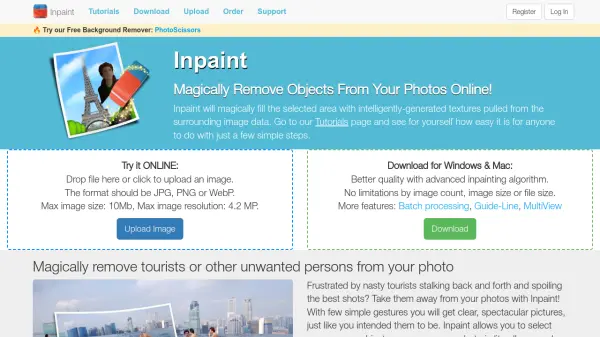
Inpaint offers a straightforward solution for removing unwanted elements from photographs. It utilizes an intelligent algorithm to reconstruct the selected image area by sampling textures from the surrounding pixels. This process allows users to seamlessly eliminate objects like tourists, power lines, watermarks, date stamps, logos, or any other distracting artifacts that may spoil a photo's composition.
The tool is designed for ease of use, requiring minimal technical skills. Users can remove skin blemishes, wrinkles, repair scratches on old photos, or fill black areas in panoramas. Inpaint aims to provide a simple way to clean up images and achieve professional-looking results without complex editing software. It supports JPG, PNG, and WebP formats for online processing, with a desktop version available for more advanced features and offline use.
Features
- Object Removal: Erase unwanted elements like people, power lines, buildings, and background clutter.
- Watermark & Text Removal: Delete watermarks, logos, and text overlays from images.
- Photo Repair: Fix scratches, spots, and tears on old photographs.
- Skin Retouching: Remove wrinkles, skin blemishes, pimples, and redness.
- Date Stamp Removal: Erase camera date stamps from photos.
- Intelligent Texture Generation: Fills selected areas with textures pulled from surrounding image data.
- User-Friendly Interface: Simple tools like Marker and Magic Wand for easy selection.
- Online & Desktop Versions: Available as a web tool and downloadable software for Windows & Mac.
Use Cases
- Removing tourists or unwanted people from travel photos.
- Cleaning up images by deleting distracting objects like wires or trash.
- Erasing watermarks or logos placed by websites.
- Restoring old, damaged photographs by fixing scratches and spots.
- Retouching portraits by removing skin imperfections.
- Removing date stamps from digital photos.
- Filling blank areas in panorama shots.
- Preparing images for professional use or printing by removing visual clutter.
FAQs
-
How long are purchased credits for the online version valid?
Credits are valid for one year from the date of your last purchase. -
What happens when I use up all my credits for the online version?
You will need to purchase new credits to continue processing images online. -
Does editing the same image multiple times online use more credits?
No, the same image can be re-edited and downloaded without using more credits. However, uploading the same image again counts as a new image and uses a credit upon download. -
How long is the license for the desktop version valid?
The desktop license is valid for one year from the date of purchase and includes free improvements during that period. -
What is the refund policy?
Because the product is available as try-before-you-buy, cash refunds or exchanges are not offered once a purchase has been made.